Exif reader
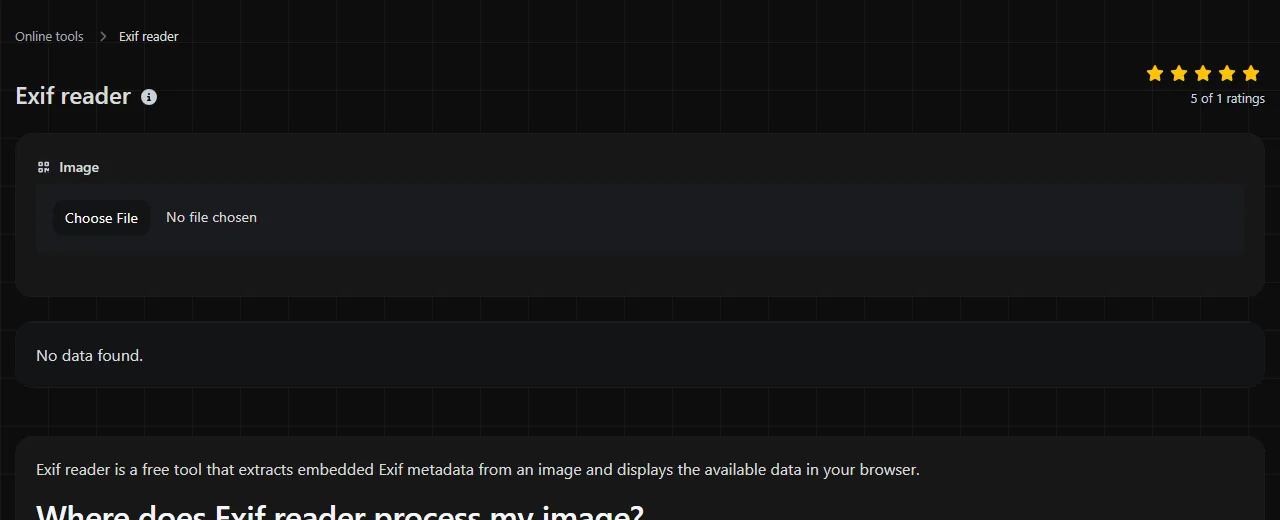
Upload an image and extract its Exif metadata.
| No data found. |
Exif reader is a free tool that extracts embedded Exif metadata from an image and displays the available data in your browser.
Where does Exif reader process my image?
Exif reader does all processing entirely in your browser, and your image is never uploaded to a server. This matters when a photo may contain private location, device, or timestamp information.
Local processing protects the file from being sent to this service, but it does not make the metadata itself safe to publish. GPS coordinates can identify a home, workplace, or other sensitive location. If a metadata field contains a URL, inspect the address before opening it because an embedded link can lead anywhere.
What can camera metadata reveal about a picture?
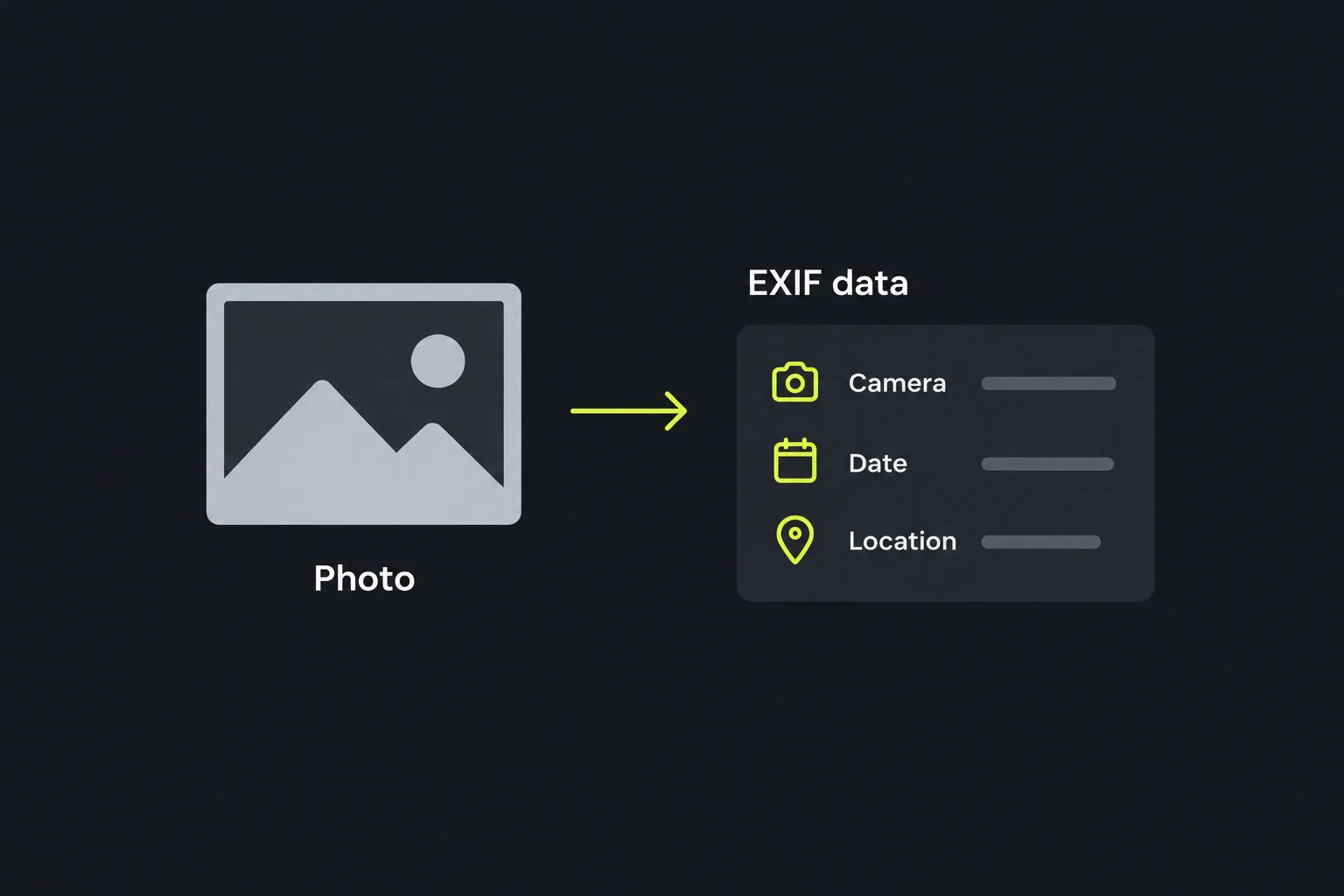
Camera metadata can record how, when, and sometimes where a picture was created. Exif, short for Exchangeable image file format, is commonly embedded in photos produced by digital cameras and phones.
Depending on the device and its settings, an image may contain:
- Camera manufacturer, model, and sometimes lens model
- Original capture date and time
- Exposure time, aperture, ISO setting, and focal length
- Flash status, metering mode, and white balance
- Image orientation and pixel dimensions
- GPS latitude, longitude, altitude, or direction
- Editing software or firmware information
- Artist, copyright, description, or user-comment fields
Not every image has all these fields. Screenshots, downloaded social media images, edited copies, and graphics created in design software often contain little or no camera Exif data. Other metadata standards, including IPTC and XMP, can hold captions, rights information, and editing history, but they are separate from Exif even when stored in the same file.
Checking a saved image on desktop or phone
- Save the original image to your computer or phone. If it came from an email or messaging app, avoid taking a screenshot of it because that creates a different image.
- Select the saved image in Exif reader. On a phone, use the browser's file or photo picker to choose it from the photo library or local files.
- Review the extracted Exif data. The Data field contains the extracted Exif data. No data found. means it did not find data to return.
- Copy only the fields needed for your task, and treat dates, locations, and ownership fields as clues rather than proof.
A screenshot can also be checked, but its metadata describes the screenshot file, not the photo or page shown inside it. If the screenshot visibly contains a square QR code or a retail barcode, use QR code reader or Barcode reader instead. Those formats encode information in visible patterns rather than in the image's embedded Exif metadata.
Which metadata clues matter for a specific task?
The useful fields depend on what you are trying to verify or organize. For photo sorting, the original capture timestamp is usually more relevant than the file creation date shown by an operating system. File dates can change when an image is copied, downloaded, or restored from backup.
For a photography question, look for exposure time, aperture, ISO, focal length, and flash status. For privacy review, focus on GPS fields, comments, device identifiers, and copyright information. Orientation is useful when a picture appears sideways in software that ignores the orientation tag.
An extracted record might contain values equivalent to the following:
- Make: Canon
- Model: Canon EOS R6
- DateTimeOriginal: 2026:07:04 14:32:10
- ExposureTime: 1/250 second
- FNumber: 5.6
- ISO: 400
This example suggests a camera model and exposure settings, but it does not establish who took the photo or whether someone edited the metadata. Exif fields are ordinary stored data and can be changed, copied, or removed.
Can Exif reader recover details that are missing?
No, Exif reader cannot reconstruct metadata that is absent from the selected file. It extracts embedded data rather than inferring a location, camera, or date from visible image content.
A blurry photo can still have complete Exif data because image sharpness and embedded metadata are separate. Cropping also does not inherently make Exif unreadable, although an editor may remove metadata when it saves the cropped copy. A damaged or incomplete file may not be readable, and a photo stripped by a social network or export process can produce No data found.
Accented characters and non-Latin text may be stored using different metadata encodings. Older Exif fields do not handle international text consistently, so a value can appear garbled even when bytes are present. A value such as 35 may describe focal length, ISO, or another field depending on its tag and unit.
Common questions about photo metadata
Can edits be stored outside the image file?
Yes. Photo applications sometimes save editing instructions in a separate XMP sidecar file or in an application database. Selecting only the image does not make information from a separate sidecar part of the image's embedded Exif data.
Can an Exif thumbnail show an older version of a photo?
Some image files include a small embedded preview. If editing software updates the full image but fails to replace that preview, the thumbnail can differ from the visible photo. This is a privacy concern when an earlier crop showed material that was later removed.
How accurate is GPS information in a photo?
Accuracy varies with the device, satellite reception, and how the coordinates were added. Indoor photos and images taken near tall buildings may have less precise positions. Manually entered or modified coordinates should not be treated as independent evidence.
Why do some text fields display unusual symbols?
Exif includes several text fields with limited or inconsistently declared character encodings. Software may interpret accented letters, emoji, or non-Latin writing differently. The unusual display does not necessarily mean the whole image is damaged.
Does copying a photo to another drive remove Exif?
A normal byte-for-byte file copy necessarily preserves embedded metadata. A service that compresses, re-encodes, or exports the image may produce a new file without the original fields. Compare the original file with the delivered copy when preservation matters.
Final checks before sharing
- Check GPS coordinates and altitude for private locations.
- Review comments, copyright fields, and device information.
- Inspect any embedded URL before opening or forwarding it.
- Keep the original file if timestamps and camera settings may be needed later.
- Use a separate metadata-removal method when you need to publish a clean copy, since reading metadata does not remove it.
Similar tools
Popular tools
Create a WhatsApp chat link from a phone number, with an optional prefilled message.