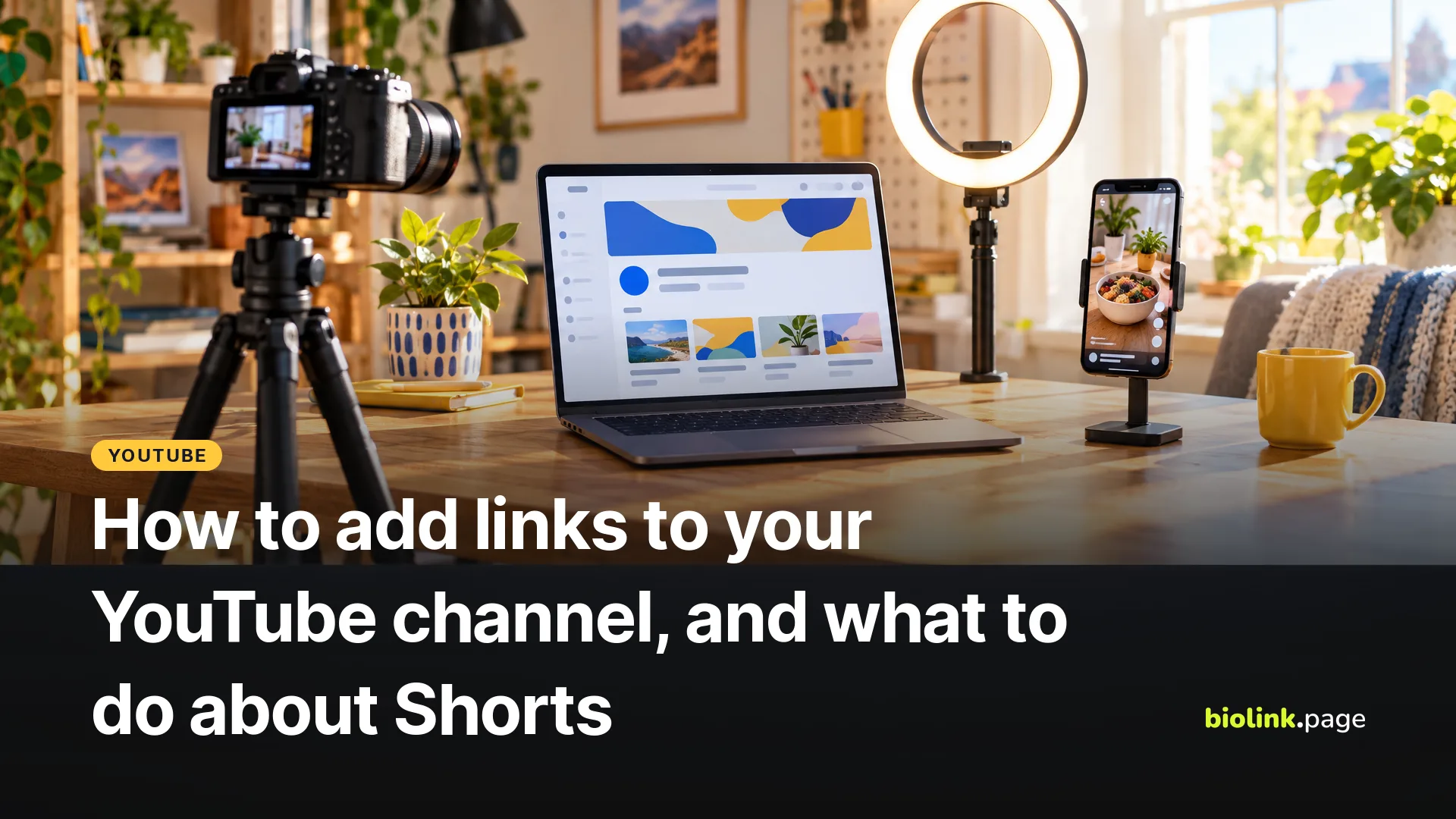
You add links to a YouTube channel in YouTube Studio under Customization > Profile > Links, and YouTube shows up to 14 of them on your channel. The first link gets the best spot, in the profile section beside the Subscribe button, and the rest appear when viewers tap to see more links.
Shorts work differently. Links typed into a Short's description or comments aren't clickable, so the main routes from a Short are your channel links and the Related video link. The YouTube rules and steps here come from YouTube's Help Center and announcements, read on October 29, 2026, using the Computer, Android and iPhone versions where a page has them.
How many links can you add to a YouTube channel?
Up to 14. YouTube's page on managing your channel's profile says "You can showcase up to 14 links on your channel Home tab," as long as they follow the external links policy. Older guides may give a lower number, but the current Help Center says 14 on all three device tabs.
Placement differs slightly by device in YouTube's own wording. The Computer tab says the first link appears "near the subscribe button," and the Android and iPhone tabs say "above the subscribe button." Either way, only one link is visible without a tap, so the order you choose matters.
How do you add links to your YouTube channel on a computer?
- Sign in to YouTube Studio.
- From the left menu, select Customization, then Profile.
- Under Links, click Add link and enter a title and the URL.
- Click Publish.
Older guides send you to a tab called Basic info. YouTube's current steps say Profile.
How do you add channel links from your phone?
Use the YouTube Studio app. The Android and iPhone tabs of the Help Center page give the same steps.
- Open the YouTube Studio app.
- In the top right, tap your profile picture.
- Next to your channel description, tap Edit.
- Under "Links," tap Edit.
- Tap Add and enter the title and URL.
- Tap Done, then Save.
Can you still put links on your YouTube banner?
No. YouTube removed them in 2023. In its Some Updates to Links on YouTube announcement (August 10, 2023), TeamYouTube wrote that "Starting on August 10, 2023, clickable social media icons from all desktop channel banners will no longer show, as they can be a source of misleading links." The same post introduced the clickable profile links near the Subscribe button, which are the Profile > Links ones above. Older guides that show link icons over the channel art describe the pre-2023 layout. You can still put your handles in the banner image itself, but they won't be clickable.
Can you put clickable links in YouTube Shorts?
Not in the description or comments. YouTube's page on sharing links with your audience says "To reduce spam and scam attempts, URLs placed in YouTube Shorts comments and Shorts descriptions are non-clickable."
The same page lists what is clickable. That includes channel profile links, the Related Videos in Shorts link, external brand deal links and YouTube Shopping affiliate program links, though brand deal and Shopping links come with their own requirements. URLs in long-form video descriptions and comments are clickable too, but to add clickable external links there you need access to advanced features. To see which features your channel has, go to Settings, then Channel, then Feature eligibility in YouTube Studio on a computer (YouTube Help).
The Related video link points a Short to another video, Short or live stream from your own channel. Per YouTube's related video help, you add it this way.
- Sign in to YouTube Studio and select Content from the left menu.
- Click the Short you want to edit.
- Select a Related Video from your channel.
- Click Save.
It needs advanced feature access, and the video you pick has to be public or unlisted. Viewers then see "a clickable link below your channel handle." To send Shorts viewers off YouTube, tell them to tap your channel name and use the first channel link.
Why won't your YouTube channel links save or show up?
Start with the external links policy. YouTube doesn't allow links to content that breaks its Community Guidelines, such as malware, phishing pages or unauthorized copies of paid content, and says "If we can't verify that a link you post is safe, we may remove the link." Then check that you clicked Publish in Studio or Save in the app, and that the link you want is first in the list, since only the first link shows without a tap.
The policy also notes that affiliate content doesn't violate YouTube's Terms of Use, though posting it excessively from dedicated accounts may break the spam rules. In the US, the FTC also expects you to disclose affiliate links, and its Endorsement Guides Q&A says a disclosure only in the video description is "not enough on its own."
Which link should go first on your YouTube channel?
Put the link that does the most work in the first slot. If you have one main goal, such as a store, a booking page or a newsletter, link it directly. If you have several, a single bio link page in that slot lets viewers choose without tapping "more links" first, and you can add or reorder destinations without touching YouTube.
On BioLink.page's free plan you get up to 5 bio link pages with 15 blocks each, including a YouTube block to show a video on the page (as of October 29, 2026). For more ideas on what to put there, see our Instagram and TikTok bio ideas, which work for a channel too.
How can you track clicks from your channel links?
Use a separate short link or UTM-tagged URL for each placement, such as the first channel link and the link in a pinned comment on a long-form video. A short link's statistics count opens of that link, not unique people or sales, and UTM tags only show up if the destination site runs analytics. For tagging, see our guide to UTM parameters.
Links in long-form video descriptions follow the same rules and the same advanced features requirement, and they're a good place for the specific product or page that video talks about.
Frequently asked questions
How many links can I add to my YouTube channel?
Up to 14, according to YouTube's Help Center as of October 29, 2026. The first one appears by the Subscribe button.
Why aren't the links in my Shorts description clickable?
YouTube made URLs in Shorts descriptions and comments non-clickable to reduce spam and scams. Use the Related video link or your channel links instead.
Do I need a verified channel to add channel links?
The profile help page doesn't list any requirement for channel links beyond following the external links policy, and it doesn't mention the verification badge. Related video links and clickable links in long-form descriptions do need advanced features, which you can check under Feature eligibility in YouTube Studio.
Want one link that holds your store, socials and latest video? Make one free bio link page for your channel's first link.