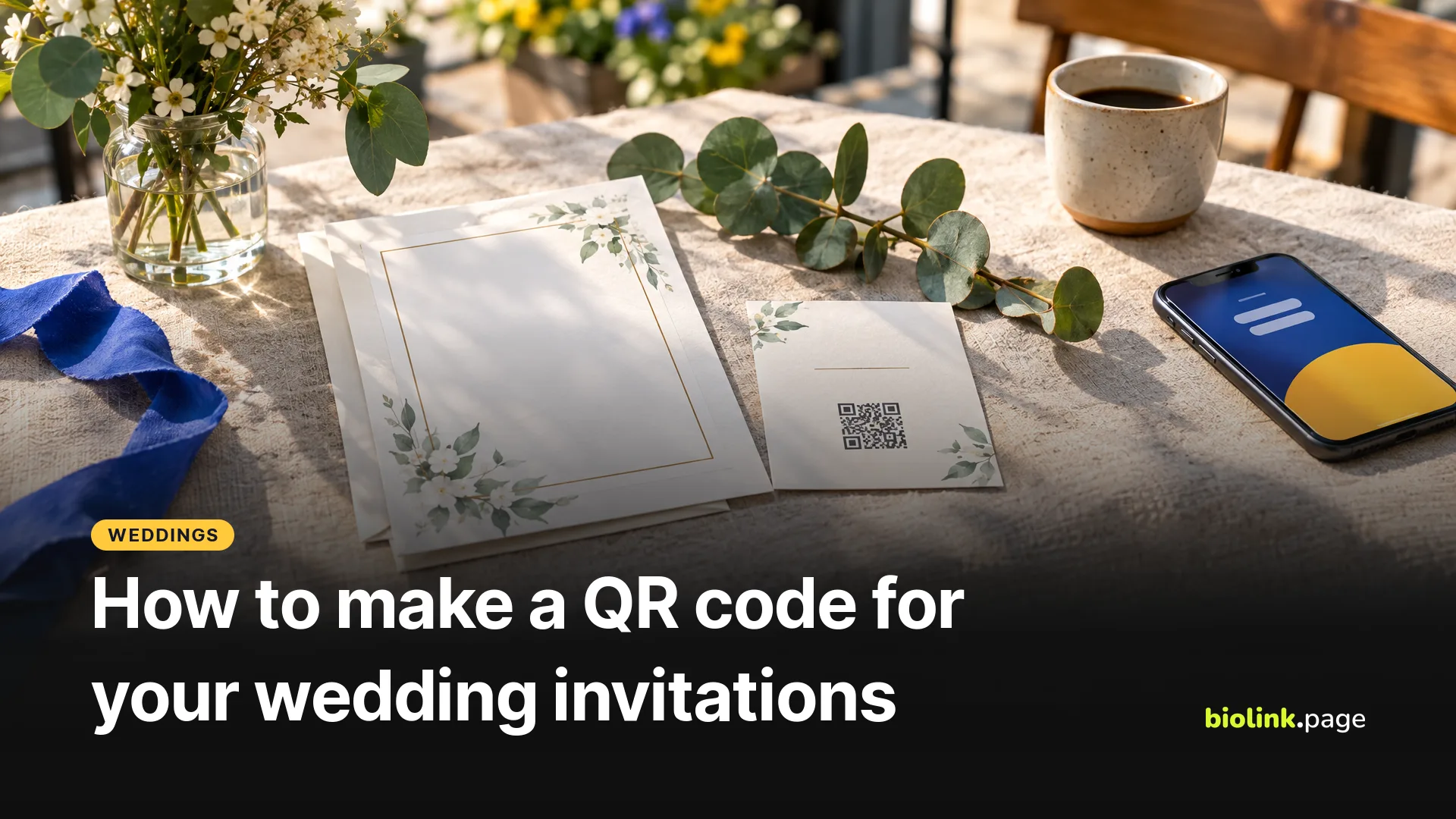
To make a QR code for your wedding, put your wedding details on one web page (a wedding website, an RSVP form or a free bio link page), make a QR code that points to that page, and scan a printed proof on a couple of phones before you order. If there's any chance the page address will change before the wedding, make the code dynamic so you can repoint it after the invitations are in the mail.
The steps below use BioLink.page, which is our product. Any QR code generator that downloads a print-quality file will do the job.
What should a wedding QR code link to?
A wedding QR code works best when it links to one page that holds everything guests need, rather than to a single form. Guests scan the code for different reasons at different times, and a single printed code can only send them to one address.
| Destination | Good for | Watch out for |
|---|---|---|
| RSVP form | Collecting replies in one place | No longer needed once the RSVP deadline passes |
| Wedding website | Schedule, travel, FAQs, often RSVP and registry too | The address may change if you move to a different wedding site service |
| Registry | Gifts | Points guests to gifts before anything else |
| One simple page with buttons | RSVP, registry, hotel block and directions side by side | You need to keep the buttons up to date |
If you already have a wedding website, point the code there. If you don't want to build one, a link in bio page with a handful of buttons covers most of what guests look for.
How can one QR code last from the save the date to the thank-you notes?
One QR code can last the whole engagement if it points to a page you keep editing, because the code only holds the address and the page behind it can change at any time. Over a year-long engagement, one printed code might go like this.
- Save the date. The page shows the date, the city and a line saying invitations will follow. Add the hotel room block if you have one.
- Invitations. Add the RSVP button and the reply-by date at the top.
- The week of the wedding. Move the schedule, parking and directions up. Take the RSVP button down.
- After the wedding. Swap in a link to a shared photo album and a short thank-you. Check the album's sharing setting first, since anyone who has the page can follow the link.
This is also why a plain QR code to your own page is often enough. As long as the page address stays the same, you can change everything on it. A dynamic code is what you want when you might move to a different address entirely, for example from a free page to a wedding website you build later. With a dynamic code, the QR holds a short biolink.page link, and you change where that short link goes. Our static vs. dynamic QR code guide explains the difference in more detail.
How do you build a free wedding page on BioLink.page?
You can build a wedding page on BioLink.page's free plan with the blocks it includes, which as of October 29, 2026 are heading, paragraph, image, avatar, link, big link, socials and divider, among others. The free plan allows 5 bio link pages and up to 15 blocks per page. Create a new bio link page, choose its address, add the blocks in order, and copy the page address once it looks right. The example below is made up, for a couple we'll call Sam and Jordan, at biolink.page/sam-and-jordan (an example address).
- Image block with an engagement photo
- Heading block, "Sam & Jordan, June 12, 2027"
- Paragraph block with the city, venue name and start time
- Big link block, "RSVP by April 30", pointing to your RSVP form (BioLink.page doesn't collect replies itself, so use a form or your wedding website)
- Link block, "Hotel room block", pointing to the hotel's booking page
- Link block, "Directions", pointing to the venue on a map
- Link block, "Registry"
- Divider block
- Paragraph block with dress code, parking and a contact number for questions (the page is public, so use a number its owner is happy to share)
That's 9 blocks, which leaves room for a schedule or a photo album link later. Guests don't need an account or an app to open the page itself. The services behind the buttons may ask for one. A Google Form set to accept one response per person, for example, asks guests to sign in to Google, so open each button in a private window to see what a guest will see.
How do you make the wedding QR code?
Make the code after the page is live, so you can test it against the real address.
- In BioLink.page, go to QR codes, create a new code and choose the URL type.
- Paste your page address. Switch on the dynamic option if you may change the address later. Once the code is printed, don't edit the short link's own address, only its destination.
- Pick colors that match the invitation but keep the pattern dark on a light background.
- If you add a monogram in the middle, it takes 25% of the code's width by default. Keep it smaller, or raise error correction from the default M to Q or H. Neither guarantees a scan, so test the proof.
- Set Margin size to 4. The field starts at 0, and a QR code needs a blank border four modules wide on every side, according to DENSO WAVE, the company that created the QR code.
- Download at a large size (up to 2,000 pixels) or as an SVG file, and send that to your designer or printer.
The free plan allows up to 10 QR codes in total, so you can make a separate code for the welcome sign or table cards if you want one.
Where should the QR code go on wedding stationery?
Put the QR code where guests need the next step. Good spots are the back of the save the date, the details card that comes with the invitation, or the RSVP card in place of a return envelope. On the day itself, a code on the welcome sign or table cards can lead to the schedule or the photo album.
Print the address under the code as well, so anyone who doesn't scan can type it. Print the one the code actually holds. For a plain code that's your page address, such as biolink.page/sam-and-jordan. A dynamic code holds a short link with a random ending, which you can rename to something readable in your Links before you print. For relatives who don't do QR codes, keep a phone number or mail-back option on the RSVP card.
How should you test a wedding QR code before printing?
Test the printed proof, not the file on your screen, because size, paper and ink are what make a code fail. Print one card at its real size and scan it with at least one iPhone and one Android phone, from where a guest would hold it and in dim light like a reception room. Check that the page opens on cell data, not only on your home Wi-Fi.
Keep the four-module white margin around the code and don't shrink it to fit the design. Glossy or foil card can reflect light, so tilt the proof a little while you scan. To double-check the digital file, upload it to our QR code reader, which decodes it in your browser and shows the address inside.
Can a QR code add the wedding to guests' calendars?
Yes, an Event QR code holds the event details themselves, and a phone that understands the format can offer to add them to the calendar. Apple's developer talk on QR code recognition in iOS 11 says "iOS supports event QR codes encoded with the iCalendar format" (Apple Developer), and Android phones vary by scanner app. BioLink.page's Event type has fields for the event name, location, a web address, a note, start and end times, a time zone and two reminders, though some calendar apps may drop the reminders when they import the event. When the code is built, the times are converted from the time zone you pick, so a phone that reads the code can show the time in the guest's own time zone. Check it on your own phones. This is how the QR code creator worked as of October 29, 2026.
BioLink.page's Event QR code stores the details inside the code, so it can't be changed after printing. Use it only when the date and venue are final. And whether a phone offers "add to calendar" depends on the phone's camera or scanner app, so scan your proof on both iPhone and Android before you rely on it.
If the venue will share guest Wi-Fi, a Wi-Fi QR code for guests on the welcome table saves a lot of password spelling.
Build a free wedding page and QR code on BioLink.page and keep the same printed code from the save the date to the thank-you notes.