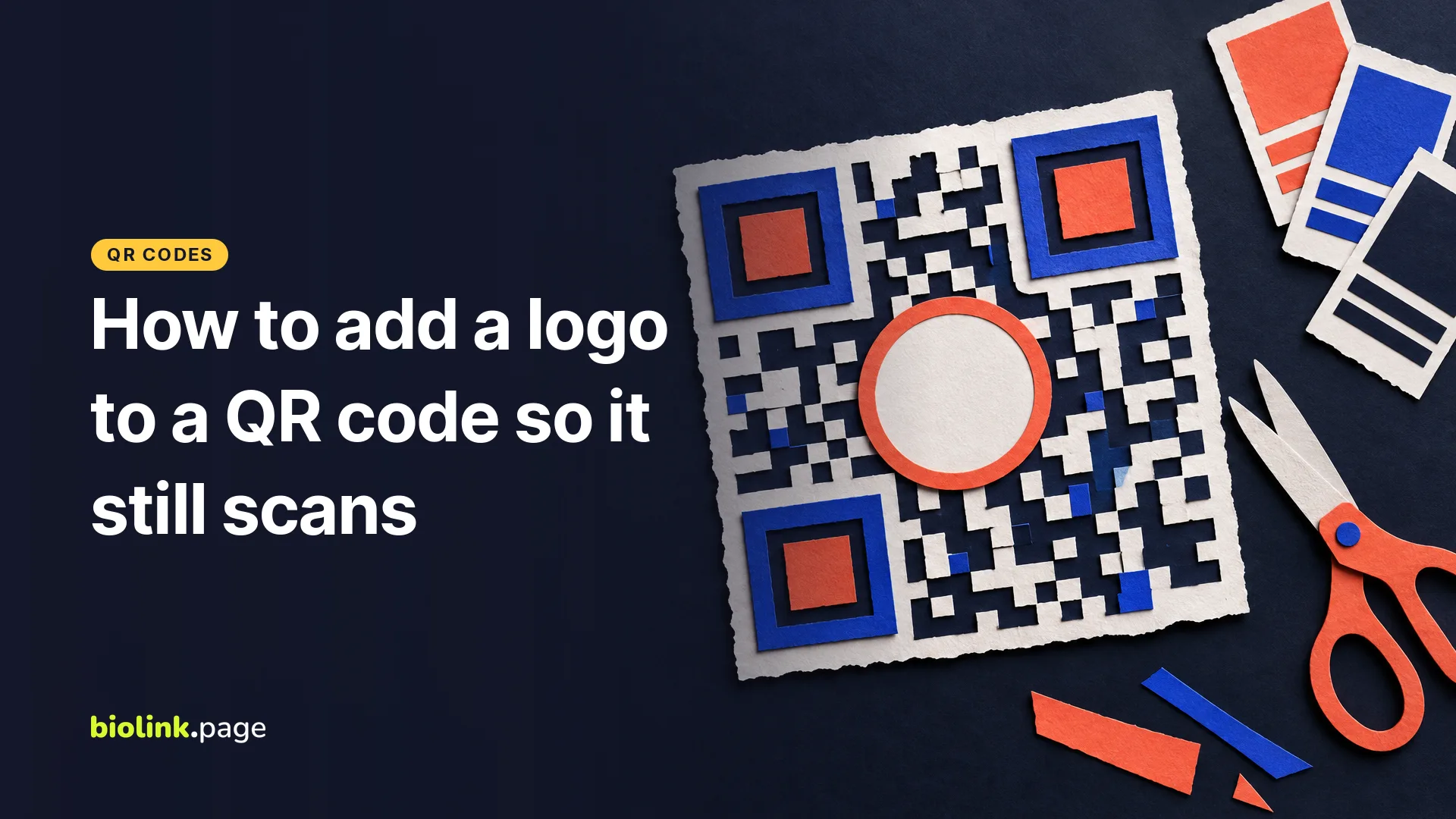
A QR code can still scan with a logo in the middle when the logo is small enough for the code's error correction to make up for the hidden part, and only a real scan tells you for sure. In our decoder test on October 29, 2026, a code holding a short link decoded with a logo up to 25% of its width at BioLink.page's default settings (error correction M, no margin) and failed at 30%. With the 4-module margin a printed code needs, the same 25% logo failed.
The error correction level sets how much of the code can be lost and still be recovered. Raise it to Q or H if your logo needs to be bigger, keep the link short, and scan a printed proof before you order a full run.
Why does a QR code with a logo still scan?
Every QR code carries extra data that lets a scanner restore parts that are dirty, damaged or covered. DENSO WAVE, the company that invented the QR code, lists four error correction levels.
| Level | Data it can restore (approx.) |
|---|---|
| L | 7% |
| M | 15% |
| Q | 25% |
| H | 30% |
DENSO WAVE adds two details that matter for logos. The percentages are a share of the code's total codewords, not of its surface area. And a higher level adds error correction data, so the same link may need a larger version with more modules (the small squares). It also says Level M "is most frequently selected."
How big can a logo be on a QR code?
There's no single safe number, because the answer depends on the error correction level, how much the code holds and the scanner. Some guides quote a "30% rule." Watch which 30% they mean. BioLink.page measures logo size as a share of the downloaded image's width, from 5% to 40%, with 25% as the default (read in the product's code on October 29, 2026). A square logo at 25% of the width covers only about 6% of the image's area, since 0.25 × 0.25 = 0.0625.
On October 29, 2026, we tested the limits with BioLink.page's own QR library rather than guessing.
- Method. We generated codes with the encoding library BioLink.page uses (BaconQrCode, with the product's UTF-8 setting), drew each one at 1,000 pixels with a 4-module white border, and placed a solid white square in the center, from 0% to 40% in steps of 5%. A solid square is a deliberately harsh test shape, since a real logo with a transparent background hides fewer modules.
- Two ways to measure. BioLink.page sizes the logo as a share of the whole downloaded image, border included. With Margin size at 0, the default, the image and the pattern are the same width. With a margin of 4, which print needs, the pattern shrinks inside the image and the same logo setting covers more of it. We tested both.
- Scanner. Two desktop decoders in OpenCV 5.0 (QRCodeDetector and QRCodeDetectorAruco). A setting passed when both returned the exact address. This is a software test, not a phone test. Phone cameras deal with blur, angle and glare, and they may do better or worse than these decoders.
- Content. A 26-character short link (https://biolink.page/xk4m9, an example) and a 149-character store URL with UTM tags (also an example).
| Error correction | Short link, margin 0 | Short link, margin 4 | Long URL, margin 0 | Long URL, margin 4 |
|---|---|---|---|---|
| L (version 2 / version 7) | 20% | 15% | 20% | 15% |
| M, the default (version 3 / version 8) | 25% | 20% | 30% | 25% |
| Q (version 3 / version 10) | 40% | 30% | 40% | 35% |
| H (version 4 / version 12) | 40% | 30% | 40% | 40% |
Each cell is the largest logo setting that both decoders read. 40% is the top of the slider, not a limit we found. The point that matters most for print is the margin 4 column. With the border you need on paper, BioLink.page's default 25% logo failed on the short link at level M. If you want a logo at 25% or bigger on something printed, choose Q or H, or keep the logo at 20% or less at M.
How do you add a logo to a QR code in BioLink.page?
You upload the logo in the Branding section of the QR code editor. These steps match the dashboard as of October 29, 2026.
- Open QR Codes in your dashboard and click Create QR code.
- Choose URL as the QR code type and paste your link. Turn on Dynamic QR code if you want to change the destination later without reprinting.
- Open Branding, upload your logo under Logo (JPG, PNG or GIF, up to 5 MB) and move the Logo size slider.
- Open Options. Set Margin size to 4 for print, because the editor starts at 0 and the field counts modules. Then set Error correction capability to Q or H if the logo is above 20%.
- Download an SVG for the printer and a PNG for screens.
- Scan the preview on your screen with two different phones, then scan a printed proof.
The free plan allows up to 10 QR codes, and in the product's code and plan settings the logo and error correction options aren't limited by plan (checked October 29, 2026).
What makes a logo work well in a QR code?
A simple, high-contrast mark works better than a full logo with small text.
- Use the icon or monogram, not the wordmark. Small text in a 1-inch code is usually too small to read.
- Give the logo a solid or white background, or a little padding, so it reads as a separate shape rather than broken modules.
- Keep the code itself dark on a light background. Light-on-dark and pale colors make scanners work harder.
- Don't place the logo over the three big corner squares. BioLink.page always centers it, so this only matters if you edit the file afterward.
What should you test before you print?
Test the final file at the final size, not just the preview. Print one copy at actual size on the paper you'll use, then scan it with at least one iPhone and one Android, from the distance people will really stand, in the light where it will hang. If it hesitates on one phone, lower the logo size or raise the error correction and test again. The free QR code reader shows exactly which address a code holds, which helps when you have several versions on your desk.
Does adding a logo make a QR code dynamic?
No. A logo changes how the code looks, not where it points. Whether you can change the destination later depends on what the code holds, which we explain in static vs dynamic QR codes.
Frequently asked questions
What error correction level should I use with a logo?
In our decoder test, M handled a 25% logo only without a border, and a printed code needs one. For printed codes with a logo above 20%, Q or H is the safer choice. The code may get denser. Our short link stayed at version 3 at M and Q but moved to version 4 at H.
Why does my QR code with a logo scan on one phone but not another?
Camera apps and scanners differ. In our test the two decoders disagreed only once, on the long URL at Q with a 40% logo and a border. Make the logo smaller, raise the error correction, shorten the link, or print the code larger.
Ready to try it on your own link? Make a free QR code with your logo.