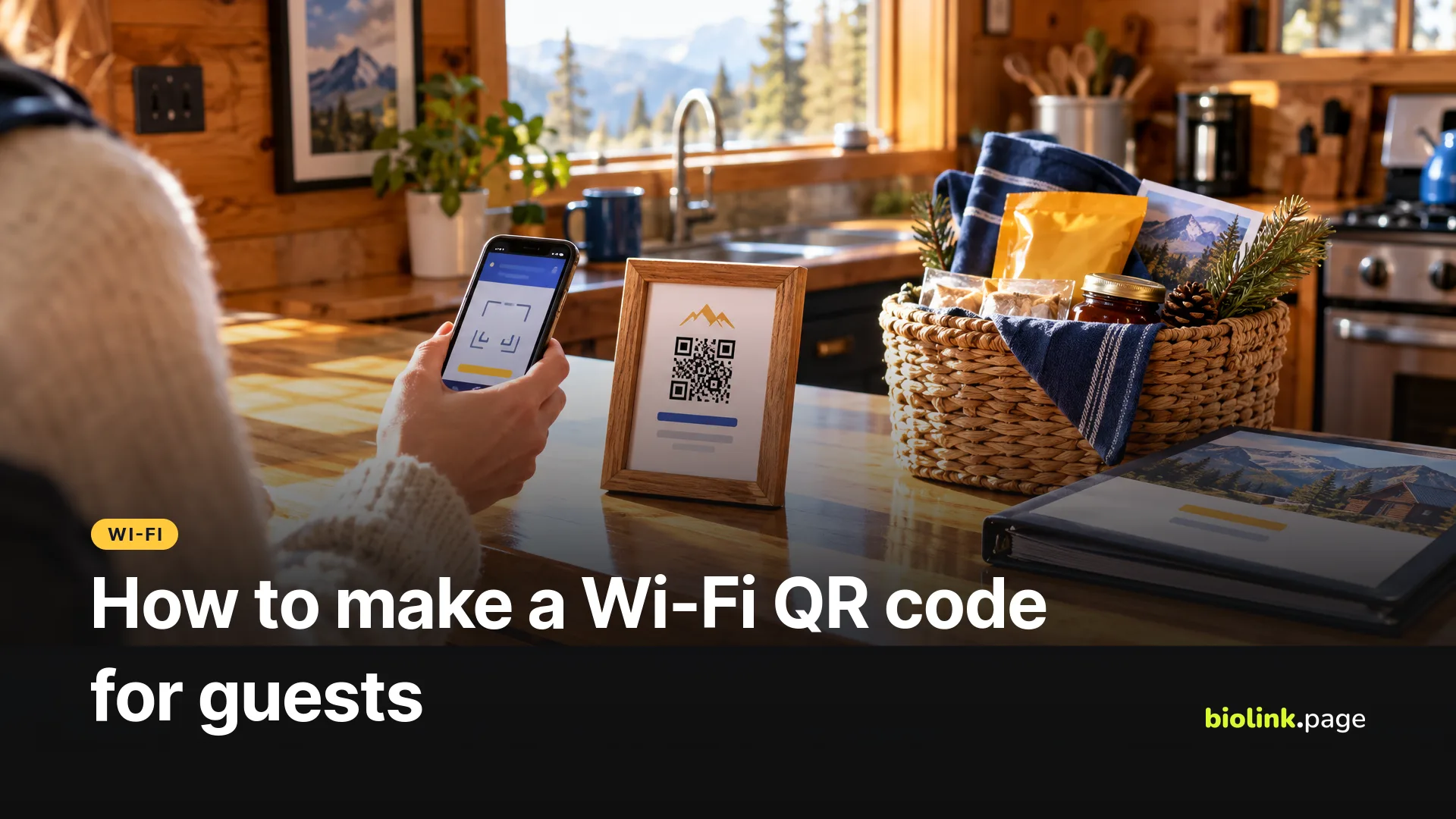
To make a Wi-Fi QR code for guests, enter your network name, security type and password into a Wi-Fi QR code generator, download the code, and put it where guests can scan it. When a guest points a recent iPhone or Android phone at the code, the phone reads the network details and offers to join, so nobody has to type a 16-character password from the back of a router.
This guide is for vacation rental hosts, restaurants, salons, offices and anyone who's tired of spelling out their Wi-Fi password. We walk through making one on BioLink.page, what the code contains, and how to keep your main network private. Phone support details come from Apple and Google, checked on October 19, 2026.
How to make a Wi-Fi QR code on BioLink.page
- Sign in and go to QR codes, then create a new QR code.
- Choose the WiFi type.
- Enter the WiFi name (SSID) exactly as it appears in your phone's Wi-Fi list, including capitals and spaces.
- Pick the Encryption that matches your network. For a typical password-protected network, that's WPA/WPA2. WEP and No encryption are there for older or open networks, but they aren't recommended for security.
- Type the Password. Tick WiFi is hidden only if your network doesn't broadcast its name.
- Adjust colors if you like, download the code, and test it on an iPhone and an Android phone.
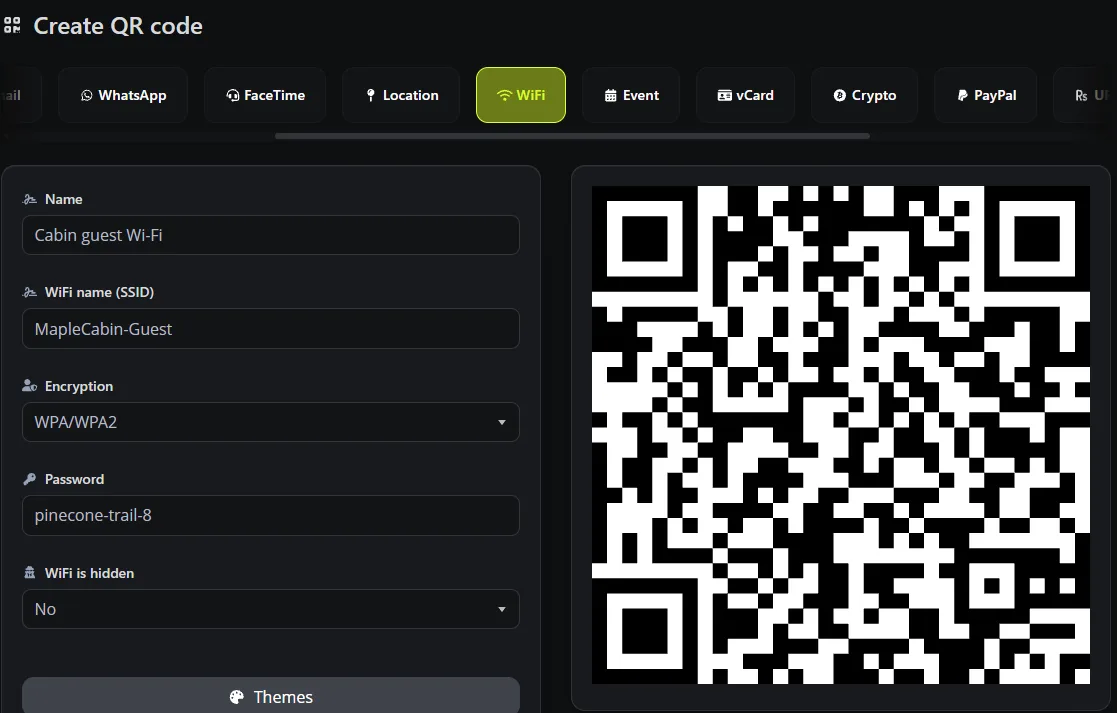
Wi-Fi codes are included in BioLink.page's free plan, which allows 10 QR codes in total.
What information is stored in a Wi-Fi QR code?
The code stores a short line of text with your network details. For a network called MapleCabin-Guest with the password pinecone-trail-8, the text inside the code looks like this.
WIFI:S:MapleCabin-Guest;T:WPA;P:pinecone-trail-8;;
S is the network name, T the security type and P the password, and a hidden network adds H:true. Semicolons, commas, colons, quotation marks and backslashes need escaping so phones don't misread them. BioLink.page escapes all five when it builds the code, so you can type the name and password as they are.
Two things follow from this. A Wi-Fi QR code is always static, because the details are inside it and no web link is involved, so scanning it doesn't need an internet connection, only the router's signal. And anyone who scans or photographs the code can read the password.
Will guests' phones be able to scan it?
Most will. Apple's iPhone User Guide explains scanning QR codes with the Camera app or the Scan Code control in Control Center, and iPhones can show the network you're on as a QR code from the Passwords app. Google's Pixel help explains sharing a network as a QR code from Settings or Quick Settings, and Android phones generally read Wi-Fi codes with the camera or the phone's QR scanner. Older phones and some laptops may not, so print the network name and password in small text under the code as well.
See Apple, Find and share your Wi-Fi password on iPhone and Google, Connect to Wi-Fi networks on your Pixel phone.
If your router uses WPA3 only, test with several phones. A QR code can't make an older phone support WPA3, so some devices may scan the code and still fail to join. A WPA2/WPA3 mixed mode, if your router offers it, usually helps older devices.
If your guest Wi-Fi shows a sign-in or terms page, scanning the code doesn't skip it. Guests may still need to accept the terms before they get online.
How to keep your main network private
Treat a printed Wi-Fi code like a password on a sticky note. For guests, that's fine, as long as it's the right network.
- Use a guest network. Many routers and mesh systems can run one alongside your main network. Check in the router's settings that guests can't reach your local network, as some routers need guest isolation turned on. Then guests get internet access, but not your smart TV, printer, security cameras or point-of-sale system.
- Change the guest password when you want to cut off old access, such as between seasons or after a long-term guest leaves, and print a new code when you do.
- Keep the code inside. In a rental, put it in the house manual or on the fridge, not on the front door or in listing photos.
- Don't put it in public posts. A photo of your welcome board on social media shares the password too.
Wi-Fi QR code ideas by place
| Place | Where to put the code | Tip |
|---|---|---|
| Vacation rental | House manual, fridge, by the router | Change the guest password between seasons |
| Restaurant or coffee shop | Table tent, menu, by the register | Print the password under the code for laptops |
| Salon or clinic | Waiting area, reception desk | Use a guest network, away from booking systems |
| Office | Meeting rooms, visitor badge | Guest network only, never the staff network |
| Home | Guest room, a frame in the kitchen | Handy for parties and visiting family |
Frequently asked questions
Do Wi-Fi QR codes expire?
No. A Wi-Fi code has no expiry date of its own. It works as long as the network is available and its details stay the same. If you change the network name, password or security type, make a new one.
Can I update the password without reprinting?
No. The password is stored inside the code. A dynamic QR code doesn't help here, because joining Wi-Fi doesn't go through a web link.
Can I track how many people scanned my Wi-Fi code?
No. Since there's no link behind a Wi-Fi code, there's nothing to count. If you want scan counts, use a URL code that points to a welcome page instead.
Can I make a Wi-Fi QR code for an open network?
Yes. Choose No encryption and leave the password empty. Guests still save a step finding the right network.
Why isn't my Wi-Fi QR code working?
Check the network name and password for typos, including capital letters, and that the encryption matches your router. Then check the phone supports that security type and is in range.
Does hiding my network make it more secure?
No. Hiding the network name doesn't stop people joining. Only tick WiFi is hidden if your router is set not to broadcast the name.
Is it free?
Yes. Wi-Fi QR codes are part of BioLink.page's free plan.
Want a printable Wi-Fi code for your guests in a couple of minutes? Create a free BioLink.page account.